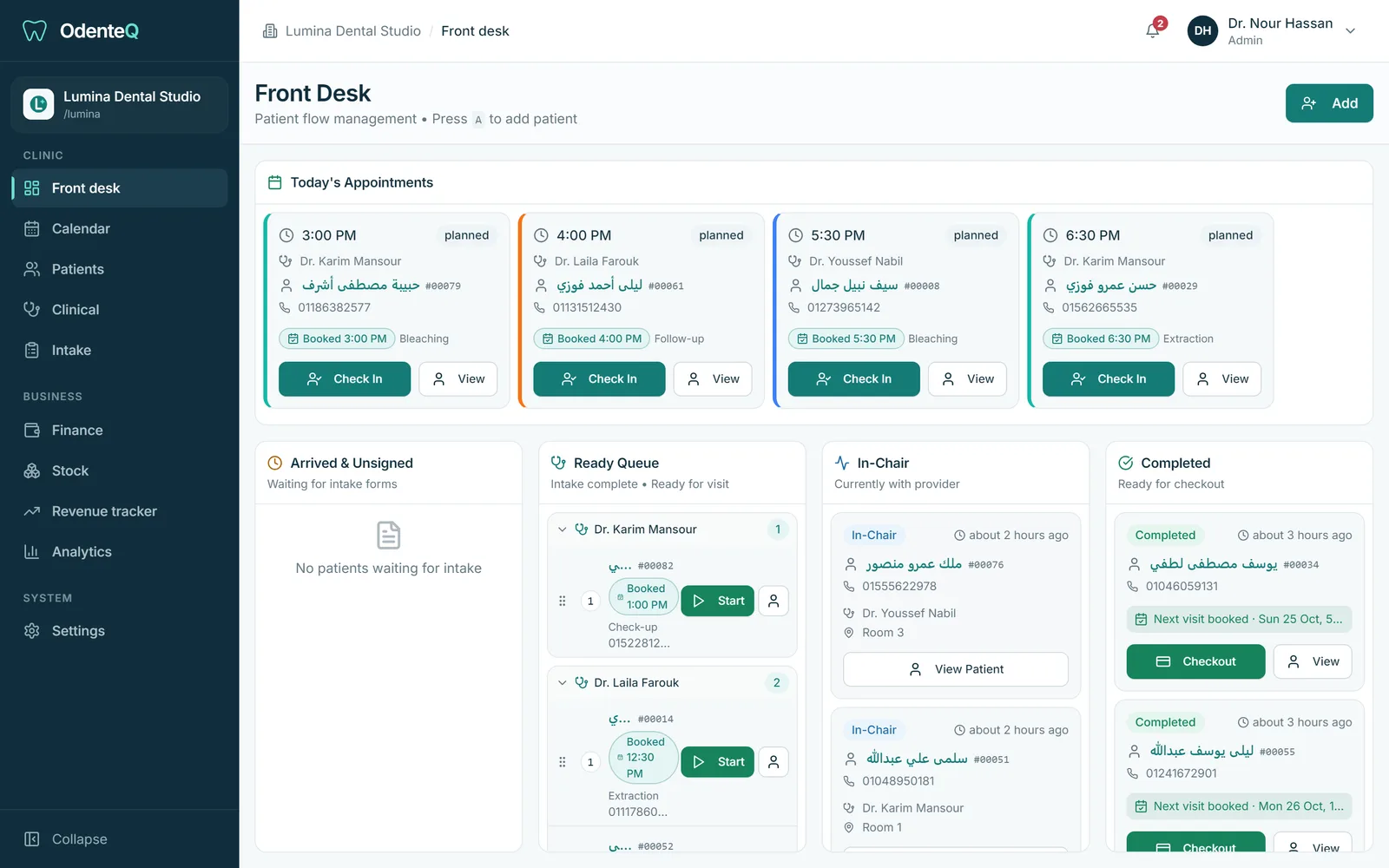
The day in four columns
Today’s bookings run across the top. Below them, patients move through Arrived, Ready, In the chair and Done. When the assistant starts a visit or the doctor finishes one, every screen in the clinic updates by itself. Nobody has to shout down the corridor.
Check in and walk-ins
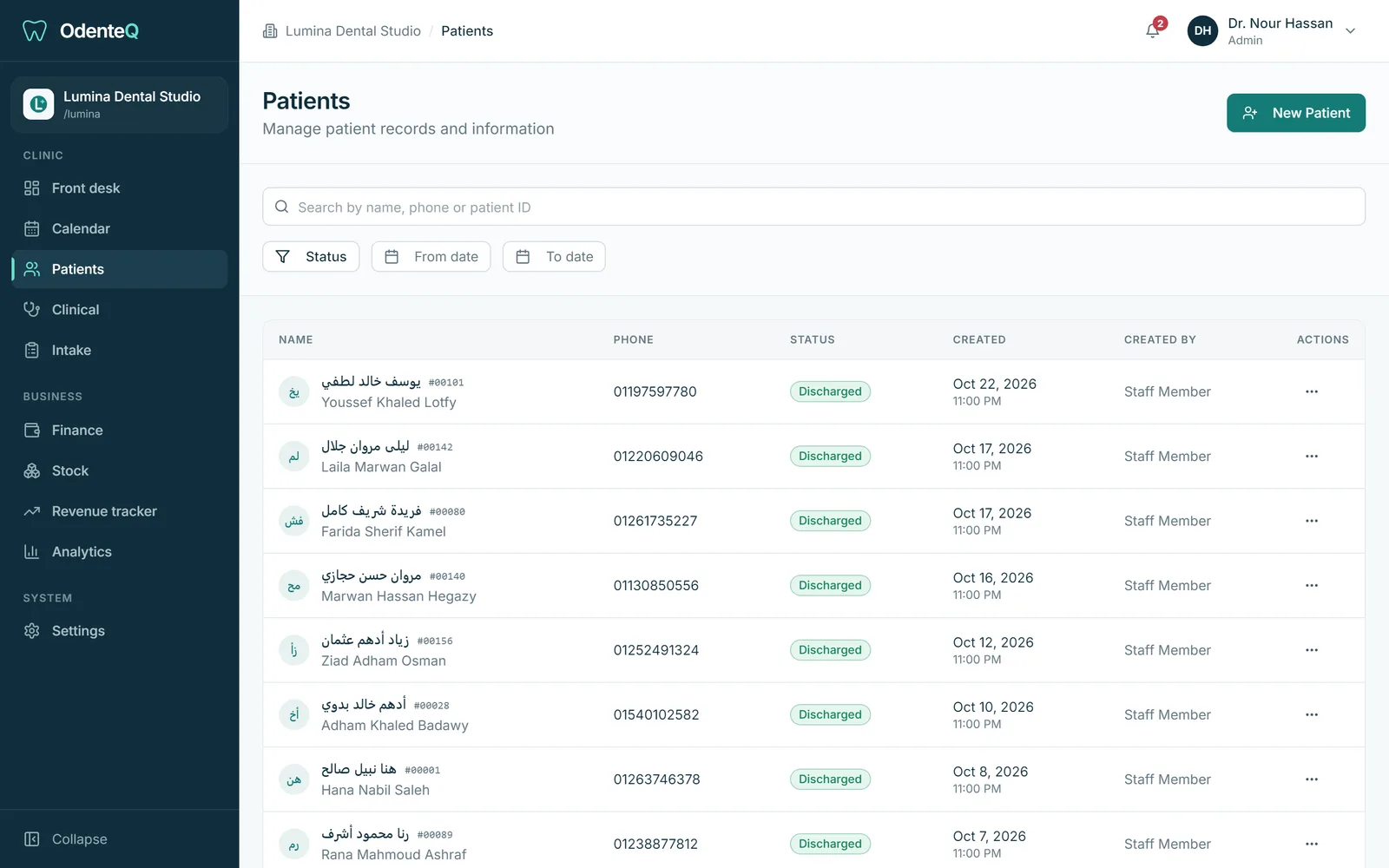
Search by name, phone or file number. Every result has Check in and Book buttons on the same row. A new patient needs only a name, phone, gender and date of birth. The rest comes from the medical history form the patient fills in on a tablet.
For a walk-in, OdenteQ shows which doctor is free and when, for example "Dr. Karim is free at 5:40". If the patient already has unfinished treatment with a doctor, that doctor is selected for you.
Medical history on a tablet
Patients fill in their medical history and sign it on a tablet in the waiting room, in Arabic or English. Allergies and conditions become alerts on the patient file. Once signed, the patient moves to Ready by themselves.
Checkout and the next visit
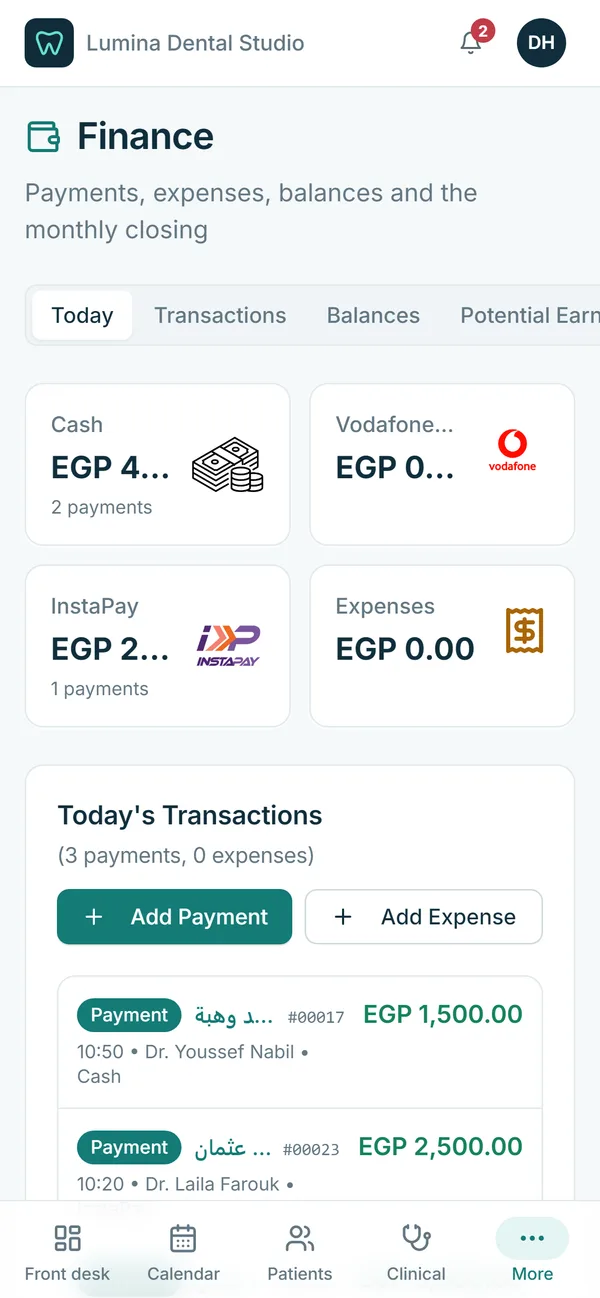
When the doctor finishes, the patient moves to Done with the bill ready. Reception takes the payment by any method you use. If treatment is still planned, OdenteQ asks to book the next visit before the patient walks out. This is how clinics stop losing patients halfway through a treatment plan.
Built for speed
A search box opens from anywhere with Ctrl+K. Each booking shows a badge: walk-in, booked at a time, or a preferred part of the day. Patients who never came are marked as no-shows automatically.